Multi-Factor Authentication (MFA) adds an extra layer of security to your Call recording account by requiring a verification code in addition to your username and password when signing in.
Prerequisites
Before you begin, ensure that:
- You have an active user account on the call recording platform.
- You have an authenticator application installed on your mobile device, such as:
- Microsoft Authenticator
- Google Authenticator
- Authy
Setting Up MFA.
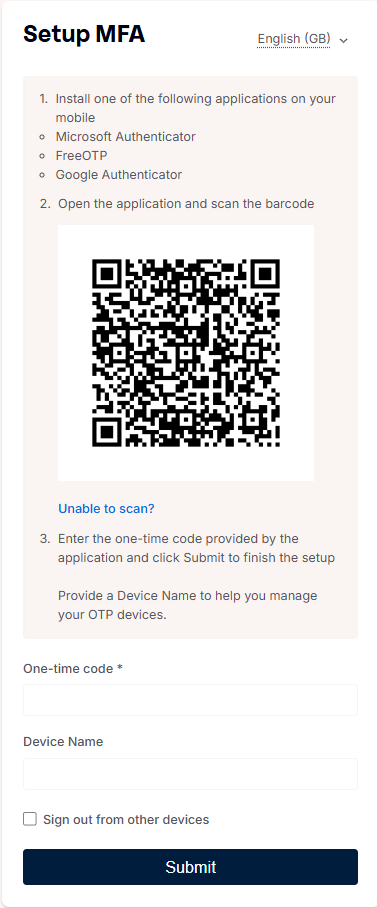 | Step 1: Scan the QR Code When you log in for the first time after MFA has been enabled: 1. A QR code will be displayed on screen. 2. Open your authenticator application. 3. Select Add Account or Scan QR Code. 4. Scan the QR code displayed on screen Step2: Verify the Setup 1. Your authenticator app will generate a 6-digit verification code. You might need to open the newley created dubber account. 2. Enter the code into the verification field. 3. Select Verify. 4. MFA will be enabled once the code has been successfully validated. Note: You might want to rename to acccount create to Redcentric Call Record, With the authenticator application |
Signing In with MFA
After MFA has been configured:
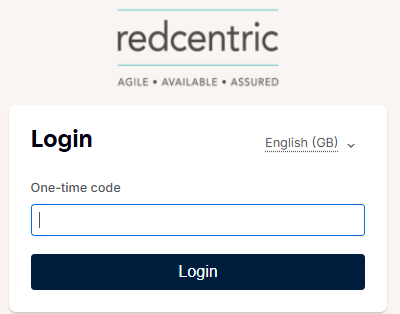 | 1. Enter your username and password as normal. 2. When prompted, open your authenticator application. 3 .Retrieve the current 6-digit verification code. 4. Enter the code into the MFA prompt. You will be granted access once verification is successful. |
Recovering Access
If you lose access to your authenticator application:
- Contact Redcentric Support.
- Request an OTP (One-Time Password) reset for dubber call recording
- Follow any instructions provided by the support team to regain access.
Need Assistance?
If you require help with MFA setup, account recovery, or account administration, please contact Redcentric Support.