Step 1: Choose your language
- Switch on the handset. A setup wizard appears the first time it starts.
- Choose your preferred language, then press the Next softkey
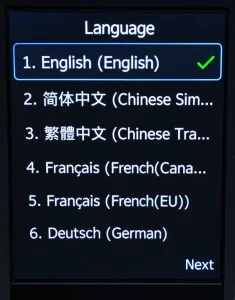
Language selection screen
Step 2: Connect to Wi-Fi
Use one of the following methods to connect. The handset can automatically reconnect to a saved Wi-Fi network when Wi-Fi is enabled.
Option A • Select a visible Wi-Fi network
BEFORE YOU BEGIN If you do not know your Wi-Fi password, contact your system administrator.
- On the handset, go to OK > Wi-Fi > Wi-Fi Network.
- Choose your Wi-Fi network from the available networks.
- Select Connect (or press OK). On AX83H, choose Options > Connect or press OK.
- Enter the Wi-Fi password in the Password field and select OK.
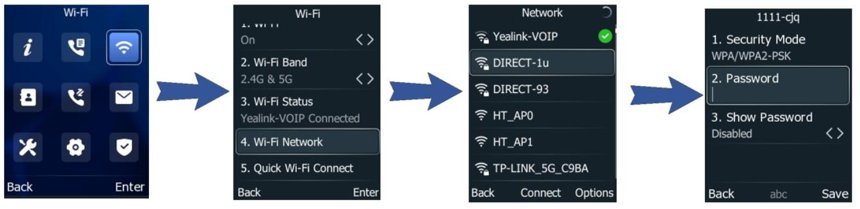
Illustrated steps: Wi-Fi menu, available networks and password entry
Option B • Quick Wi-Fi Connect (using your mobile)
REQUIREMENT Available only on handset software version 180.87.0.5 or later.
- Open Quick Wi-Fi Connect in the startup wizard, or go to OK > Wi-Fi > Quick Wi-Fi Connect.
- On your mobile phone, open Wi-Fi settings and connect to the AX Series hotspot shown by the handset.
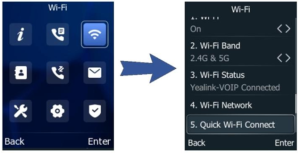
Find Quick Wi-Fi Connect in the handset Wi-Fi menu
- On your mobile, open the AX Series Wi-Fi configuration page that appears.
- Select the Wi-Fi network name (SSID) you want the handset to use, enter the network password and choose Confirm.
- Wait while the settings are transferred to the handset. Check for “Connected successfully” on its screen.
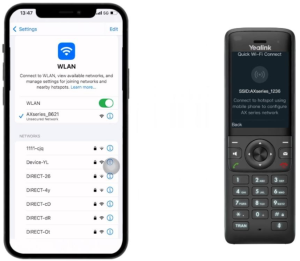
Connect the mobile phone to the AX Series hotspot
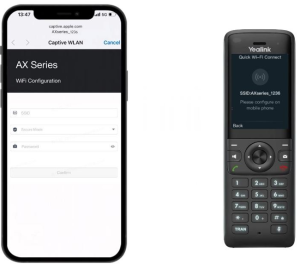
Choose the destination Wi-Fi network and confirm its details
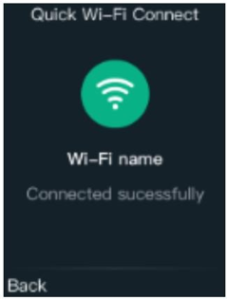
Successful connection confirmation on the handset
Option C • Add a hidden Wi-Fi network
Use this method when your Wi-Fi network does not appear in the scan list because its SSID is not broadcast.
BEFORE YOU BEGIN Ask your system administrator for the SSID, security mode and any required password or enterprise authentication details.
- Go to OK > Wi-Fi > Wi-Fi Network.
- Select Options > Add, then enter the network name (SSID).
- Choose the correct Security Mode and provide the relevant details:
-
- None: no password is required.
- WPA/WPA2 PSK or WPA3-Personal: enter the Wi-Fi password.
- WPA2-Enterprise or WPA3-Enterprise: select the required EAP method and enter the requested values.
- Select Save.
The connected network is saved in the Known Network(s) list. The handset can store up to five connected wireless networks.

Illustrated steps: manually adding a network that is not shown in the list
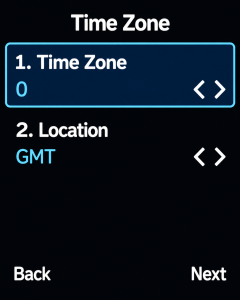
Step 3: Skip time zone configuration
When the Time Zone screen appears, press Next without changing the settings. Redcentric provisioning will apply the time zone configuration later.